Time management
Know where your time goes, client by client.
Working for several companies means several sets of priorities, deadlines and meetings. opah keeps them in one place, so you decide what gets your time, and see where it went.
The demo runs on sample data in your browser. Nothing is saved: reload it to start over.
Decide what gets your time
- A priority on every issue, urgent, high, medium or low, and a status from backlog to done.
- An estimate on each issue, shown against the time you’ve tracked on it.
- A day for each issue, so Today holds only what you chose for it.
- Deadlines per client and project, flagged on the project’s timeline to its target date.
See what’s coming
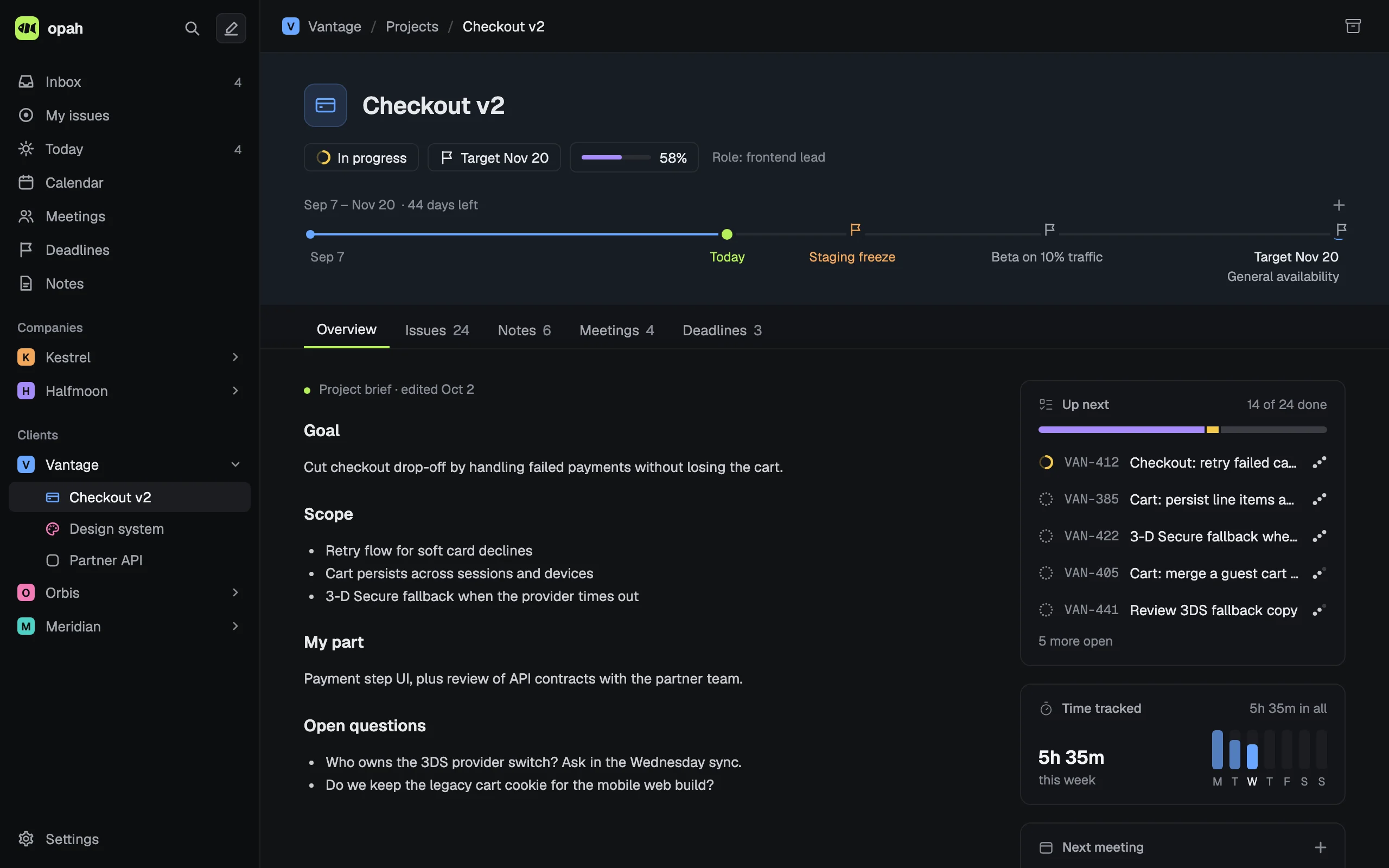
Deadlines are grouped Overdue, This week, Next week and Later, and shown in the calendar. Each project has a timeline from its start to its target date with today and its deadlines on it, and lists what’s up next.
See where it went
Track time with a timer on any issue, one running at a time, or add entries by hand. Each project shows this week’s time by day; Settings › Time totals any week or range per client and project, and exports a CSV. More on time tracking.
Meetings that end in action items
Every meeting has its notes. The unchecked action items carry into the next meeting of the series, wait in the Inbox, or become issues with a click. More on meeting notes.
Less switching between tools
Your clients’ Jira, Linear, GitHub, GitLab and Notion issues, your Google calendars and your notes in one app, searched from one palette (⌘K) and run from the keyboard.
Questions
How is opah different from a to-do app?
It’s made for working for several companies at once: each is a workspace with its projects, deadlines, meetings and time, and the issues they assign you in their own trackers come in by themselves.
Does opah use AI to plan my time?
No. It shows what’s due, what’s planned and where your time went, and leaves the deciding to you.
Can I see how much time I spent on each client?
Yes. Settings › Time shows the time per workspace and project for a week or any range of days, and exports it as CSV.
See it with sample data
The demo opens in your browser with five made-up companies’ issues, calendar, meetings and notes. Nothing to sign up for.
Try the demo, no account